A real editor, not a form
Start from over 400 animated templates, then move, resize, rotate and restyle every line, shape and logo on the canvas, with a timeline for when each one appears.
Free · runs in your browser
Type a quote or pick one from a huge public-domain library, start from over 400 animated templates, then edit every word, add scenes, music or a voiceover, and export for Reels, TikTok, Shorts and every feed. Free, and your files never leave your device.
Start from over 400 animated templates, then move, resize, rotate and restyle every line, shape and logo on the canvas, with a timeline for when each one appears.
9:16, 4:5, 3:4, 1:1, 16:9 and 2:3, with each app’s safe areas. Change size and the layout follows; export several sizes, or a carousel, at once.
Photos, videos and music never leave your device. No account, no watermark. Only an optional voiceover sends its words away, to be read aloud.
How it works
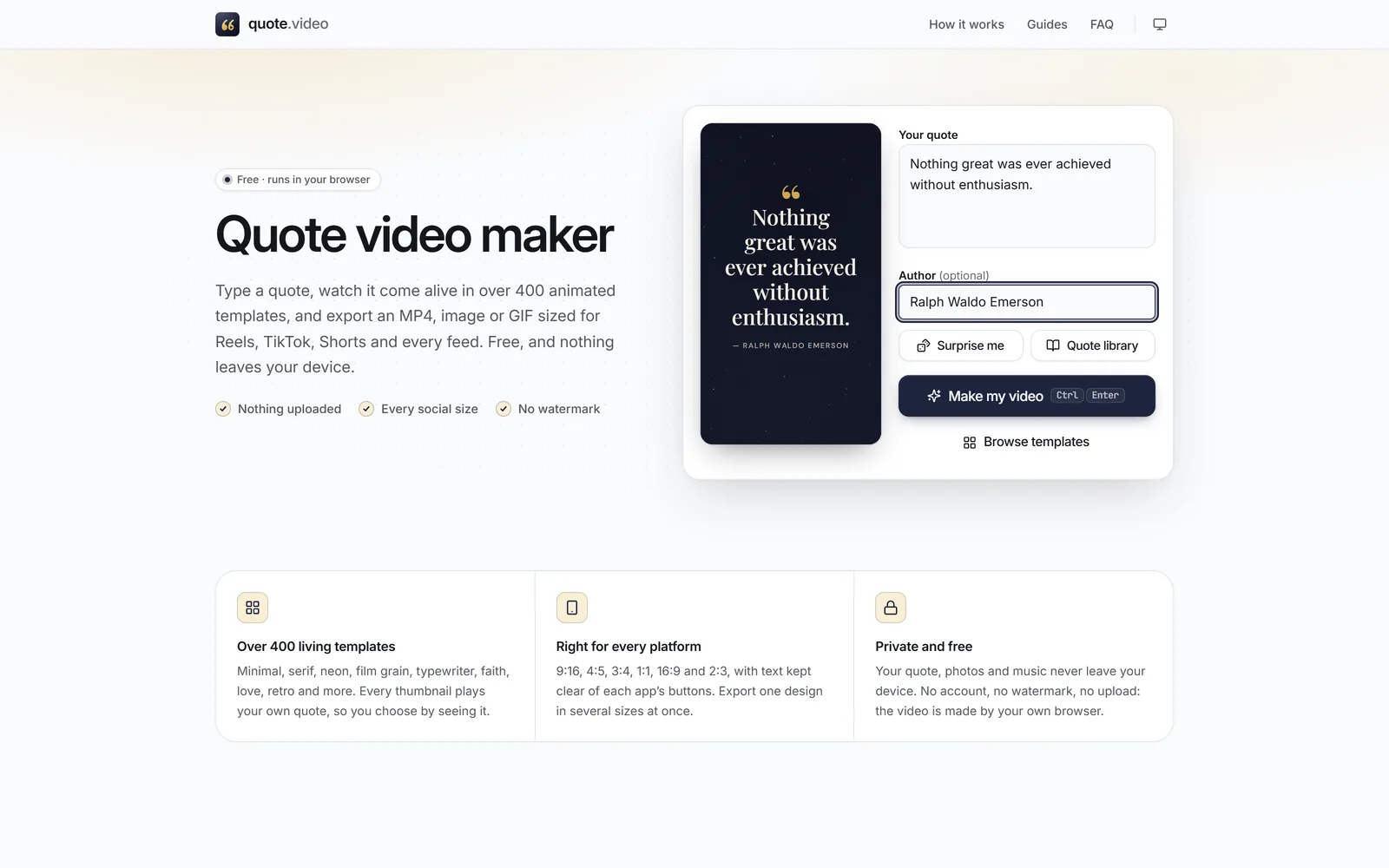
Write or paste it into Your quote and add the Author, or press Surprise me, or search tens of thousands of public-domain quotes in the Quote library.
 (enlarge image)
Type into Your quote and Author; the preview updates as you type.
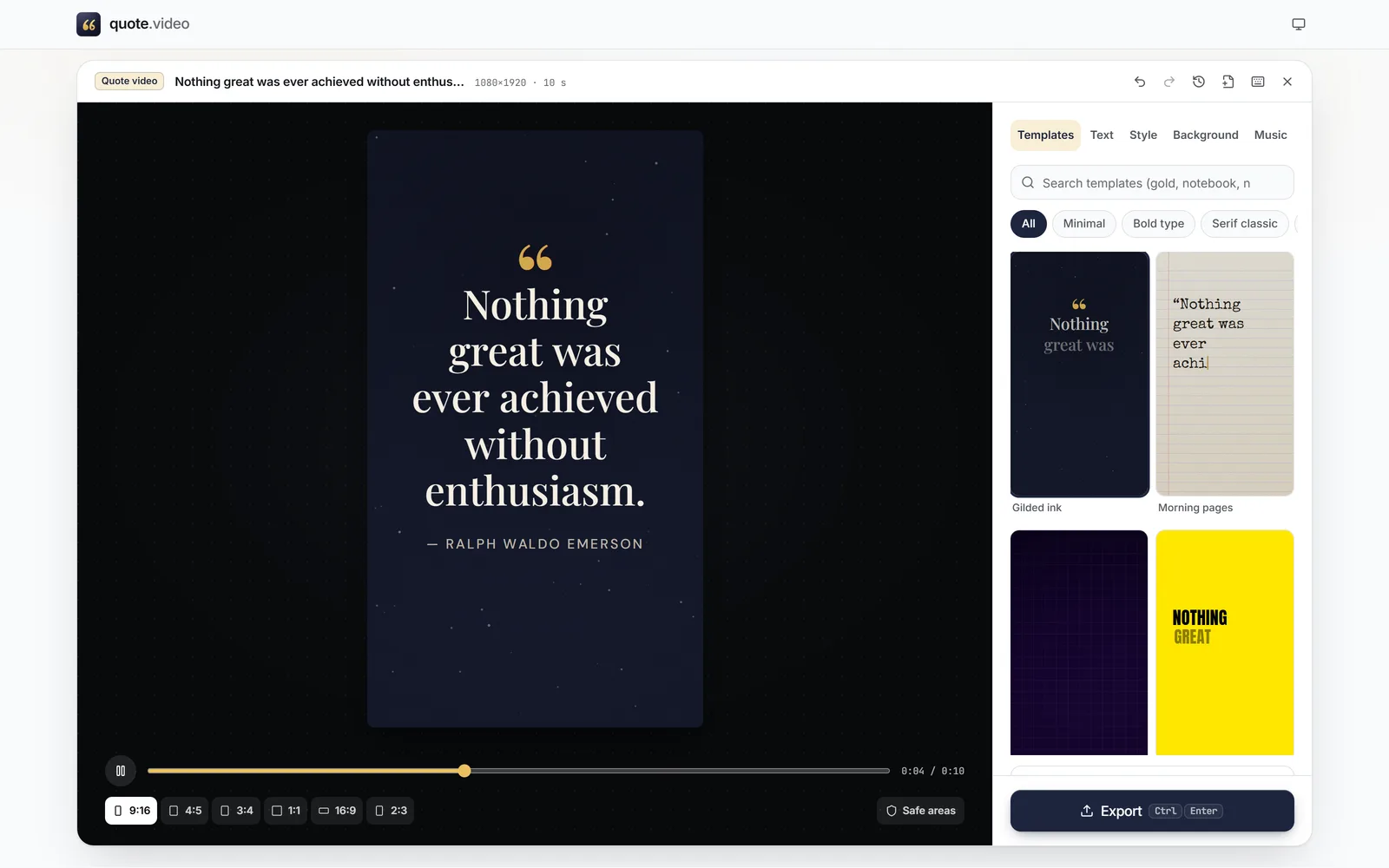
Press Make my video and pick one of over 400 Templates. Tap any text on the canvas to change its font, colour and animation, add scenes, music or a voiceover, and set the timing on the timeline.
 (enlarge image)
Every template in Templates plays your own quote.
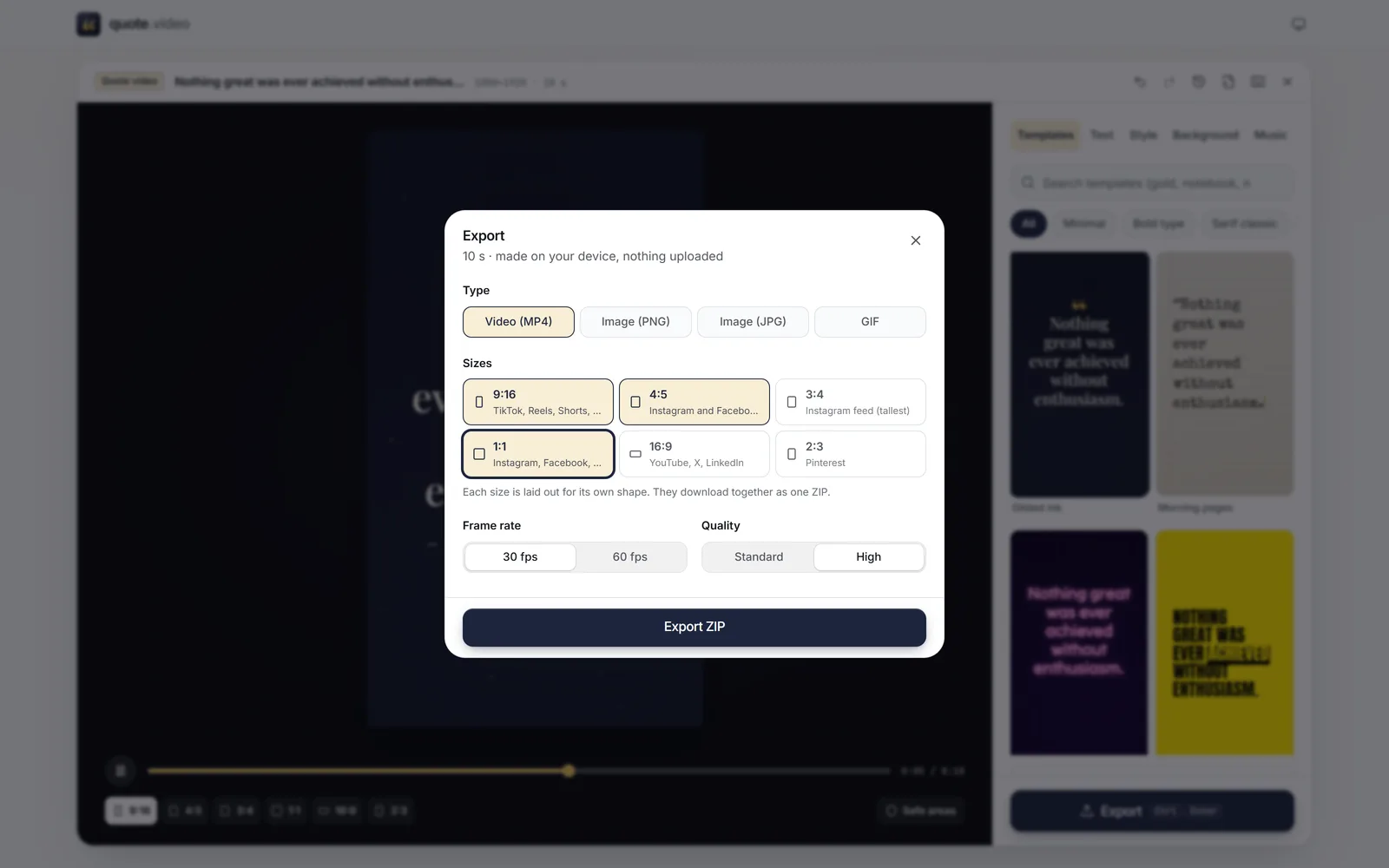
Press Export, choose a video, image, carousel or GIF and the sizes you need, then Download it or Share it straight to an app.
 (enlarge image)
Tick several sizes and Export ZIP saves them together.
Guides
Straight answers about templates, sizes, music, files and privacy. The guides above cover CapCut, Canva, InShot and iPhone too.
Type the quote into Your quote at the top of this page, press Make my video, pick a template, and press Export. You get an MP4 in about the time it takes to read the quote, made entirely in your browser.
Yes. Every template, size, export and editor feature is free, with no watermark, no sign-up and no paid tier.
Yes. A template is only a starting layout. Tap any line to drag it, resize it from the corners or turn it with the round handle; it snaps to the centre, the edges and the other layers. Add a title, a handle or watermark, emoji, shapes, lines, and your own logo or pictures, and use Layers to reorder, lock or hide them.
Yes. Press Add scene, or New scene on any quote in the library, and each quote gets its own scene with its own length, look and transition (crossfade, slide, zoom, wipe and more). Export them as one video, or as Carousel (ZIP) with one image per scene.
Yes. In Audio, pick a Voiceover voice and add it to a scene. Word by word, Karaoke and Typewriter text then follow the voice, and any music dips while it speaks. To make the voice, the words are sent to our server and a speech service; everything else stays on your device, and the editor works fully without it.
Yes. In Audio, Add music takes any audio file your browser can play, with Start, Fade in, Fade out, Volume and Fit video to music. Or choose a Generated music mood made on your device. No music is bundled, so the rights are yours to check.
9:16 (1080×1920) for TikTok, Reels, Shorts and Stories; 4:5 (1080×1350) and 3:4 (1080×1440) for tall feed posts; 1:1 (1080×1080); 16:9 (1920×1080) for YouTube, X and LinkedIn; and 2:3 (1080×1620) for Pinterest.
Video (MP4) in H.264 at 30 or 60 fps, Image (PNG) or Image (JPG) of a scene, Carousel (ZIP) with every scene as an image, and GIF for short loops. Tick several sizes and they come together in a ZIP.
No. Templates keep text inside each format’s safe area, and Safe areas shows TikTok, Reels, Shorts, Stories, feed, YouTube and Pinterest overlays on the canvas so you can check anything you move.
Yes. In Background, choose Photo or video. Darken (with Auto) keeps the words readable, Blur softens busy pictures, and Slow zoom adds gentle movement.
From public-domain books: old dictionaries of quotations, collections of maxims and proverbs, essays, poems and the World English Bible. Every quote names its author and the work it comes from, lines that were only ever attributed are labelled, and the Quote library page explains how it was put together.
Yes, automatically, in this browser. Recent projects on this page and Your projects in the editor list them so you can reopen, duplicate or delete them. Nothing is stored on a server.
Yes, in current Safari, Chrome, Edge and Firefox on iPhone, Android and tablets, with the panels in a sheet you can close. After exporting, Share sends the file to Photos, Instagram, TikTok or a message.
Copy alt text gives you each quote and author as plain text to paste into your post’s alt text field. Every template keeps text at 4.5:1 contrast or better, and Custom colours shows the contrast as you change it.
Modern browsers with WebCodecs encode the MP4 quickly on your device. Where that isn’t available, the maker records the preview in real time with the browser’s own recorder instead.